
Is your “Event” setup in Google Analytics 4 working well? Great if it does.
Unfortunately, mine didn’t. I encountered an issue while trying to check it in “Debug View” mode.
So, I’d like to share my initial experience with a technical setup: how I configured an Event at my client’s website, Tomfrozen.com 😊
Importance of Setting Up the “Event” Setup
My mentor said that before starting an SEO campaign, I should complete the technical setup within the first month.
Why? Because I need to measure my campaign correctly. I need clear data to show the result to my client.
It’s incredibly frustrating when I’m compiling reports and my campaign indicator data isn’t clearly recorded. I have to second-guess, rethink, and that takes energy.
Additionally, it lowers my confidence. Therefore, it’s crucial to organise event data.
How I Decided the “Event”
As a note, before I jumped into the technical setup, I already understood the product, the customers, and the business goal of my client.
In this project, my goal is to generate “Leads” from website visitors.
On my client’s website, there are two lead source buttons: “Konsultasi Sekarang” and “Mulai Konsultasi“:

Therefore, I need to measure how many visitors click on those two buttons, because clicks equal Leads.
What Tools do I Need
1. Google Analytics 4 (GA4)
The first tool I need is Google Analytics 4. This tool is provided free by Google and allows me to view all of my website’s internal data, including visitor numbers, sessions, clicks, and orders.
Even specific data, like I needed: clicks on the “Konsultasi Sekarang” and “Mulai Konsultasi” buttons.
2. Google Tag Manager (GTM)
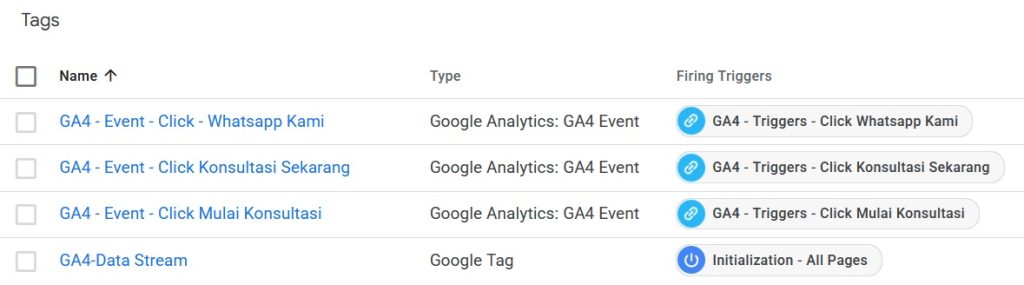
The second tool you’ll need is Google Tag Manager. It’s also free and allows you to manage all tags (tracking codes) on your website or mobile app without having to directly modify the site’s code.
Here’s what it looks like:
The Problem
Here’s the problem. After I created the “Konsultasi Sekarang” tag in GTM, I checked to see if the tag fired when the button was clicked.
I checked using the Debug View menu in GA4.
Unfortunately, a problem arose: my tag wasn’t detected, even though it had been successfully installed:
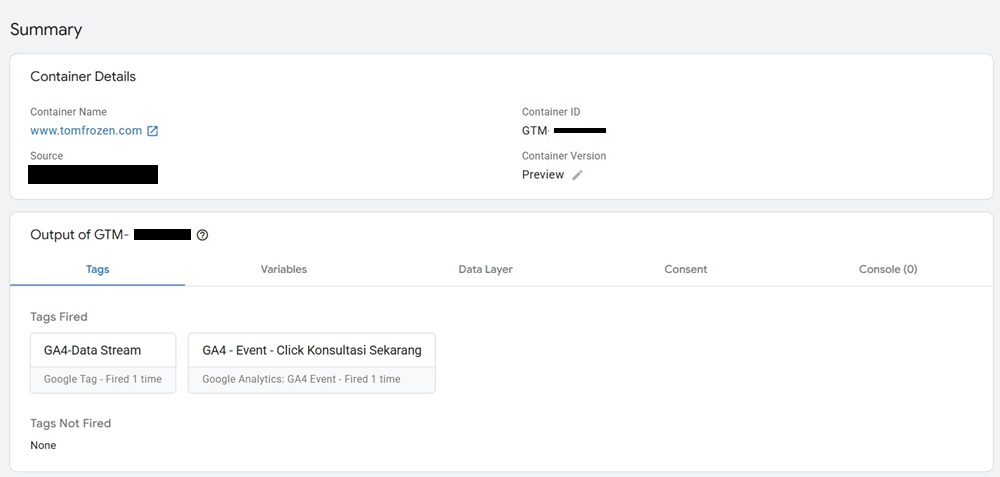
And this is the debug view’s result:
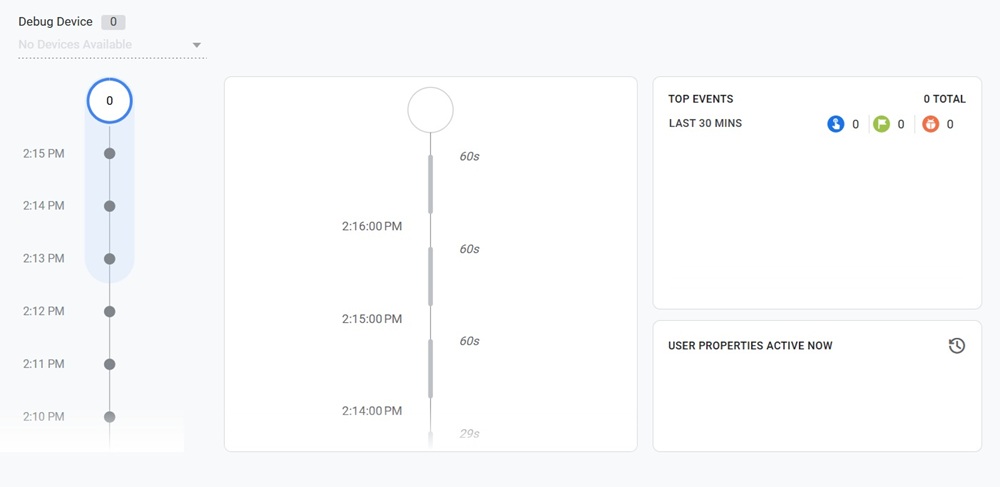
Hmm, what happened with this?🤔
Then, I double-checked based on the instructions by rewatching the class recording (2x speed hihi).
I even asked for a 101 session with my mentor to solve this problem. But he can’t find the causes too, and suggested I reinstall the tag and all.
I did it, but it happened again. I felt so frustrated😖
The Solution
Three days later, I discovered a problem with this website. It wasn’t about the tags, but about the website’s theme error.
I asked my hosting provider, Dewaweb, numerous questions. And guess what, I found a solution to my previous Debug View problem: clearing the cache.
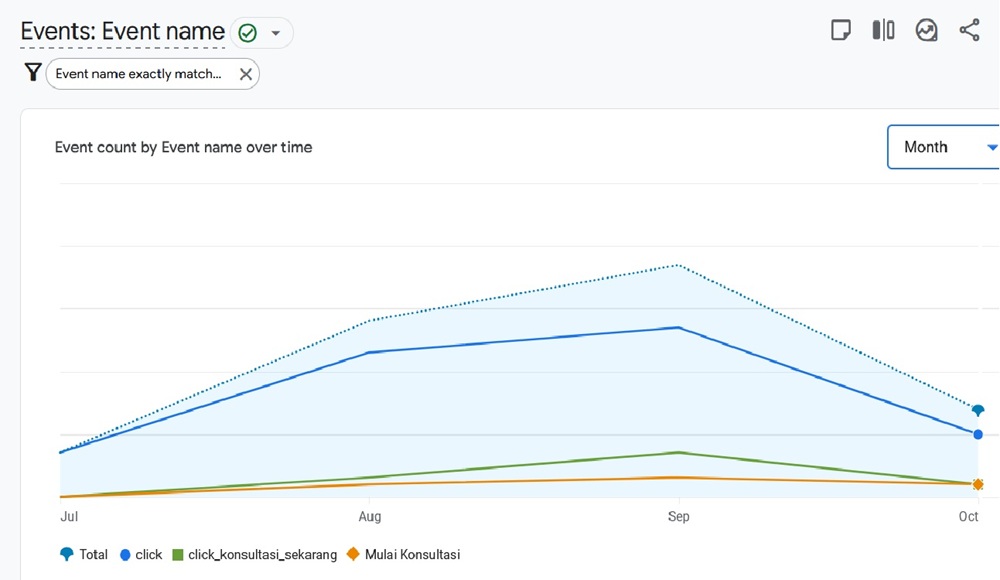
After clearing the cache, I checked again the tags in Debug View mode. It worked well. WOW.
Here’s how it shows now in my Google Analytics 4:
So, don’t stop learning when you’re stuck. Answers can come from unexpected sources. Like me, I got the clue from my conversation with customer service.
Do you have any stories or experiences about the technical setup at your website? Please leave your blog link below!😊
I have installed several tags for several Events in my Google Tag Manager, debug them and they fired.
But when I monitored the Google Analytics 4, I found that those Events weren’t counted in my Report, while I know that those Events actually happened. And now I’m crying.
Seems I found a similar problem, but I got saved by “Key Event” data😭